 Song Pieces
Song Pieces
Turn jams into song pieces
A melody that pops into your head, a riff you stumble on, a jam with your guitar. Record it on the spot and keep it, retake just the part you want, and piece it all together into a song. Then finish it in Logic Pro.
A look inside
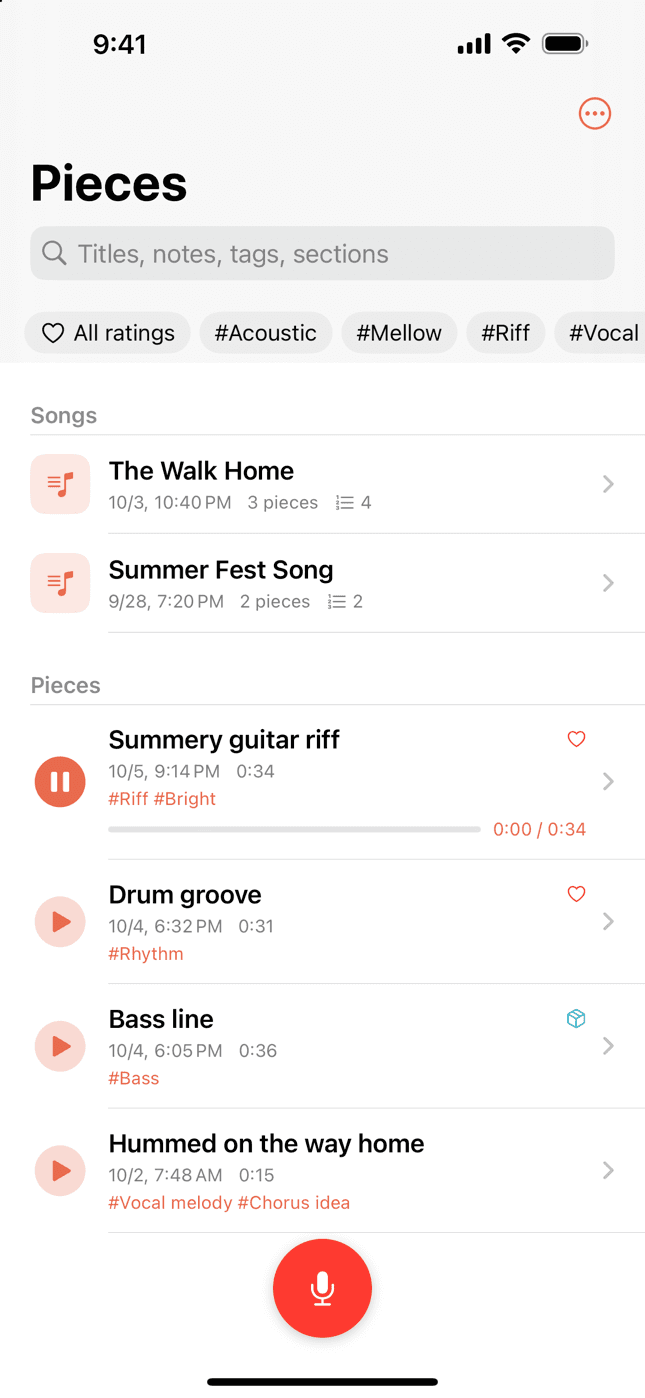
Your pieces and songs in one list 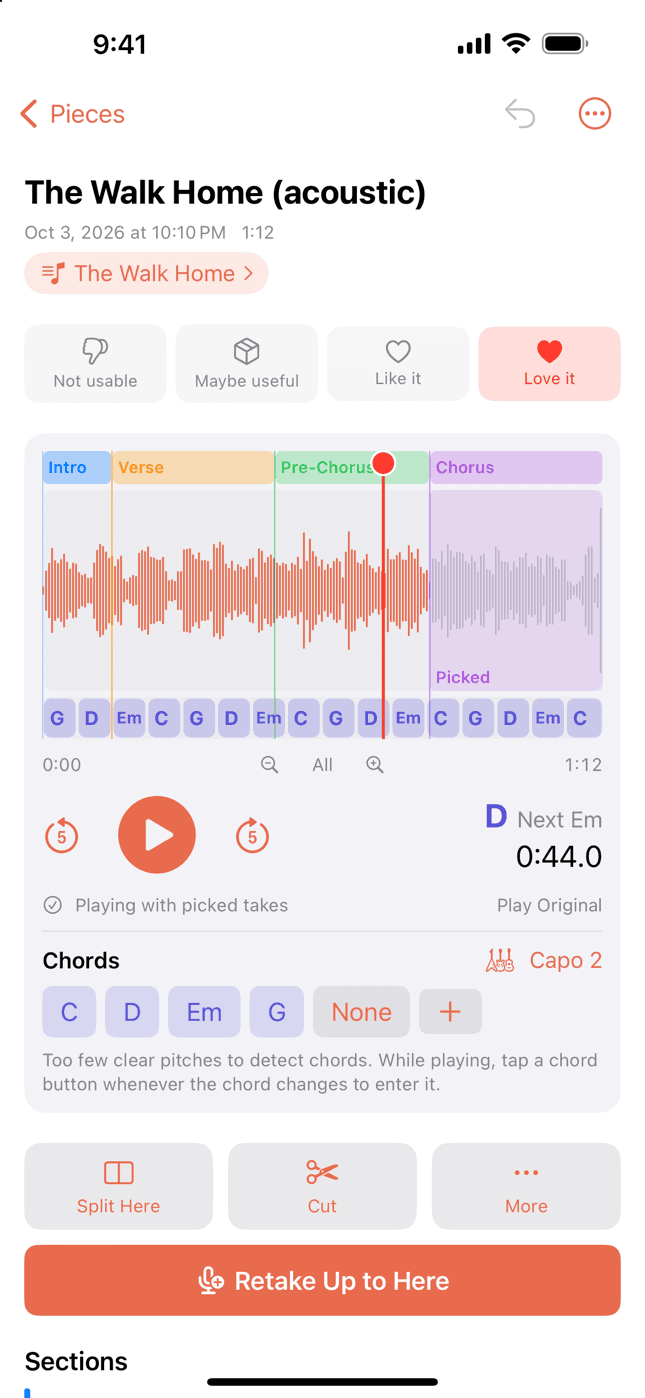
Sections, chords, and picked takes on the waveform 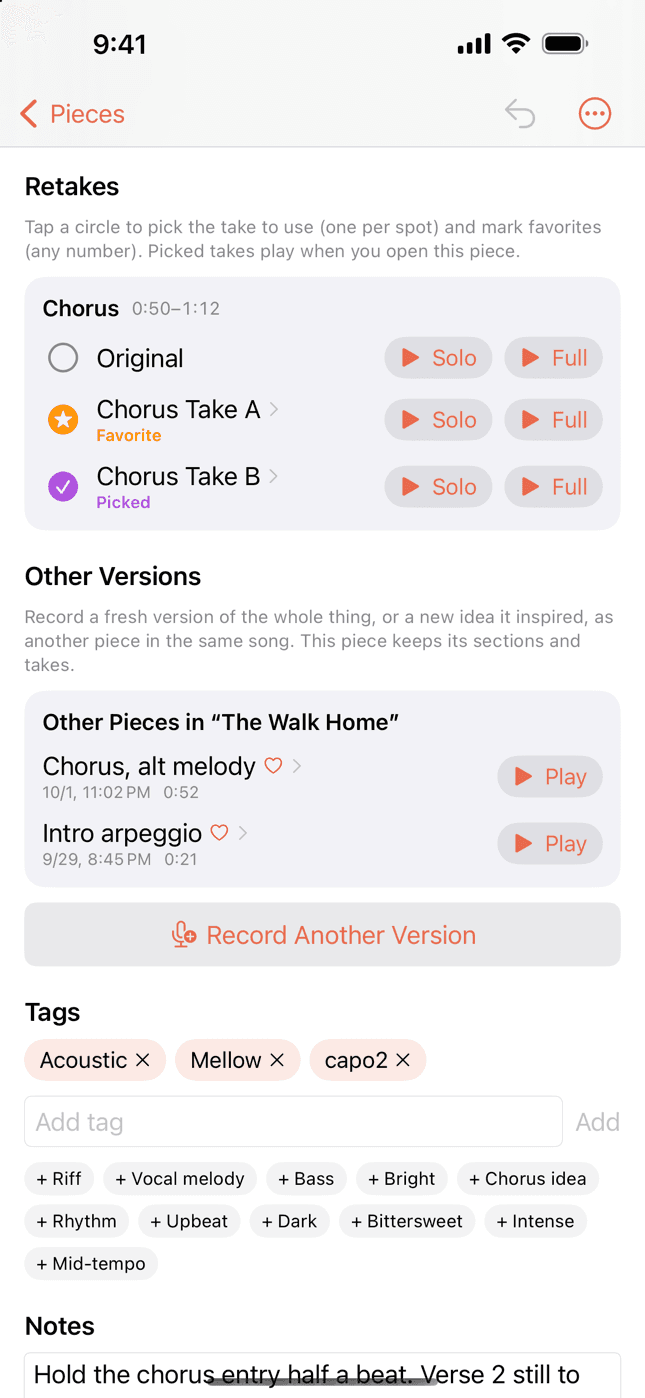
Compare retakes and pick one 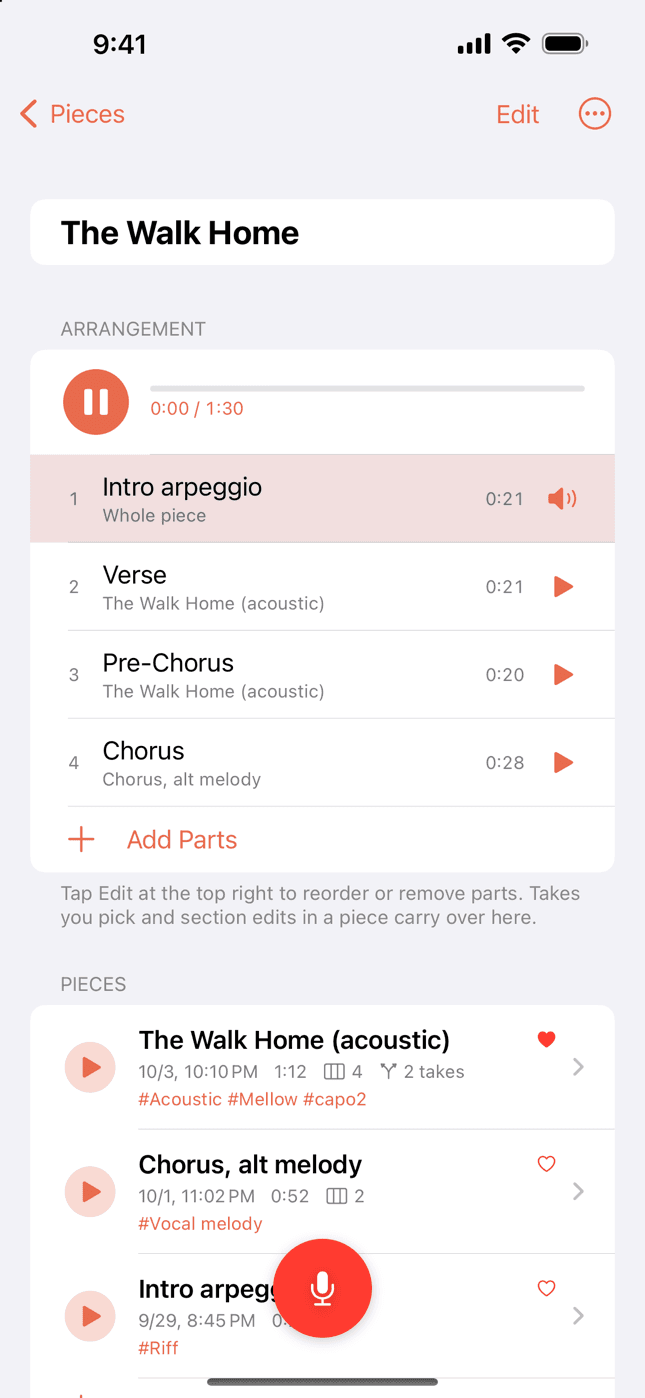
Piece a song together
Made for moments like these
Writing with your guitar
Play and sing whatever comes to mind. Record it in one long take, split it into sections later, and keep the good parts.
Collecting ideas for your band
Melody lines, guitar riffs, bass lines, drum grooves. Record them the moment they come, then find them by tag and gather them by song.
Catching a melody on the go
Humming on the way home, an idea before bed. One button, and it’s saved before it slips away.
What you can do
Record
Capture a vocal, a riff, or a whole jam with a single record button, right when the idea comes. Recording keeps going with the screen off. You can also import recordings from Voice Memos.
Split into sections
Add section markers while it plays and name them Verse, Chorus, and so on. Cut the parts you don’t need.
Retake any part
Retake just the part up to where you stopped, or a section you choose. The few seconds before the part play first, so you can come in on time.
Compare and pick
Listen to the original and your retakes on their own or in context, and pick the take you like. When you open the piece, it plays with your picked takes.
Keep ideas easy to find
Filter with four ratings and tags (Vocal melody, Riff, Chorus idea, or your own). Play any piece right from the list to remember how it went.
Gather pieces into songs
Verse ideas, chorus ideas, a version from another day: keep the pieces that belong together in one song. With Record Another Version, you can play the original back, then record the whole thing fresh.
Piece your song together
Line up whole pieces or single sections in any order and play them through. Join a verse and a chorus you recorded separately to hear the song take shape. Your picked takes and section edits carry over.
Send to Logic Pro
Export as WAV (48 kHz, 16-bit) — the version with your picked takes, each take as its own file, and your pieced-together song as one file.
FAQ
- Where are my recordings stored?
- Only in your iCloud Drive (if you use iCloud) or on your iPhone. croppre has no servers and never receives your recordings or pieces. Privacy Policy
- Can I restore a piece I deleted?
- Deleted pieces go to the Trash. You can restore them from Trash & Storage in the menu at the top right of the list. Pieces you delete permanently can’t be restored.
- If I delete a song, are its pieces deleted too?
- No. Only the song’s name, notes, and arrangement go to the Trash. Its pieces stay in your list. You can restore a deleted song from Trash & Storage, too.
- Where are my exported WAVs?
- If you use iCloud, they appear in iCloud Drive › Song Pieces › exports on your Mac. Drag them all into Logic Pro to get one track per file. A song you pieced together goes in the Songs folder inside exports. If you don’t use iCloud, they’re in On My iPhone › Song Pieces › exports in the Files app.
- My iCloud storage is running out
- Exported WAVs take up much more space than recordings. In Trash & Storage, delete exported WAVs or empty the Trash. Your pieces and recordings stay, so you can export again anytime.
- It says the microphone is off
- Allow microphone access for Song Pieces in the Settings app. You can also get there with the Open Settings button in the app.
- Which languages are supported?
- English and Japanese. The app follows your iPhone’s language setting (other languages show English).
Contact
Found a bug or have a request? Let us know by email.
Email usIt helps if you include your iPhone model and iOS version.
By croppre Inc.